Category: Computing

  • Swapping Drives After a PC Hardware Replacement

    Late last year, I replaced my main desktop PC, after using it for just about 7 years – a pretty good run. I decided to just buy an off-the-shelf system from Dell, rather than build my own (which I have done many times in the past), since my current computing needs are not super unusual, and it didn’t seem like it would be worth spending the time to spec everything out and do all of my normal bargain hunting behavior for it. Even though I have several other usable computing devices around the house which could step in when necessary, I opted for the enhanced service contract on my new machine, thinking that, in the event that something did break, minimizing my downtime would be worth the expense.

    Well, for once, something actually broke, when I purchased an extended warranty! After a couple of months of service, a fan on the computer started rattling intermittently. This is always an unnerving thing to hear, because you immediately think that your CPU or GPU is turning into a mini hot plate inside your case, and that a meltdown might be imminent. After popping the cover, inspecting and listening to all of the fans, and making sure that there was nothing rubbing up against any of the fans, I realized that the noise (which was becoming more frequent and louder) was coming from the fan enclosed in the power supply. Since the power supply is pretty much the one non-user serviceable part in the case, I relented and contacted support about getting a replacement for it. After doing the usual “I have investigated this and I’m not a total dummy” dance with technical support, they informed me that replacing just the power supply alone would be delayed for several weeks, as the part was backordered. However, they could ship me a replacement system much sooner than that – would I like to do that, instead? Sure, I guess! They shipped the replacement system via overnight shipping, and the next day, the box was sitting in my living room, waiting to be opened.


    Source: File:Intel 512G M2 Solid State Drive.jpg – https://en.wikipedia.org David290, CC BY-SA 4.0, via Wikimedia Commons

    Having used my new desktop for a couple of months, I had, naturally, already installed a bunch of things, and accumulated various stuff (not subject to cloud backups) which I would be loathe to simply throw away. If I had to reinstall and reconfigure things, I was probably looking at a couple of days of work before things were truly back to normal. Ideally, I would be able to just swap out the drives from my machine into the replacement, and go on my merry way, but I was wary about whether or not it would work that smoothly. I checked on the shipping invoice, and confirmed that they had sent a system with identical specs and hardware as my original PC, which was promising with regards to being able to just swap out the drives. (The warranty e-mails suggested that they would ship something that was equivalent or better, so I was curious as to whether or not I would get a free upgrade.) I decided to give it a shot, since if it didn’t work, I probably wouldn’t lose that much time compared to doing a full reinstall.

    This PC Magazine article gave me some optimism that things would just work, especially since, as far as I could tell, the new hardware was identical to the old set. And it turns out that the drive swap was successful, but I did run into a couple of issues that had to be resolved, which I figured I would document here, in case anyone else on the Internet runs into something similar.

    BitLocker Recovery Keys

    My drives were encrypted with BitLocker drive encryption, with the key stored in the TPM on the computer. When I moved the drives to a new computer, without the keys in its TPM, I had to enter the appropriate recovery keys at boot time, in order to be able to use the drives. I had the keys backed up somewhere on network storage, but I found it easier to simply look them up on my phone, from my Microsoft account at aka.ms/myrecoverykey.

    Reactivating Windows

    Windows fingerprints your system’s hardware upon activation. Even though the hardware in the replacement system was the same, elements that are used in the system fingerprint such as its MAC address can change, resulting in the OS activation check failing. To reactivate using the same key as on your old system, you can follow the directions in this article.

    Hitting the active device limit for the Windows Store

    It just so happens that, across all of the devices where my Microsoft ID is linked, adding the replacement desktop PC caused me to exceed the 10 device limit for Windows Store apps and games. If you run into this situation, you can remove old devices from your Microsoft account by following the directions in this support article, in order to get under the limit of 10 devices on your account.

    Clock out of sync

    After I had resolved the problems above, I noticed that I was still having problems launching some apps and games that I had purchased from the store (such as the recently released Like a Dragon: Ishin!). Attempting to start these apps would result in them immediately shutting down, without even opening up a window or existing long enough for the process to show up in the task manager. I poked around in the Event Viewer in the Management Console, and noticed some interesting errors being emitted from the AppModel-Runtime source.

     

    The event detail stated that there was an error that was encountered while it was activating the app:

    Cannot create the process for package SEGAofAmericaInc.ProjectMacan_2.3.78.0_x64__s751p9cej88mt because an error was encountered while preparing for activation. [LaunchProcess]
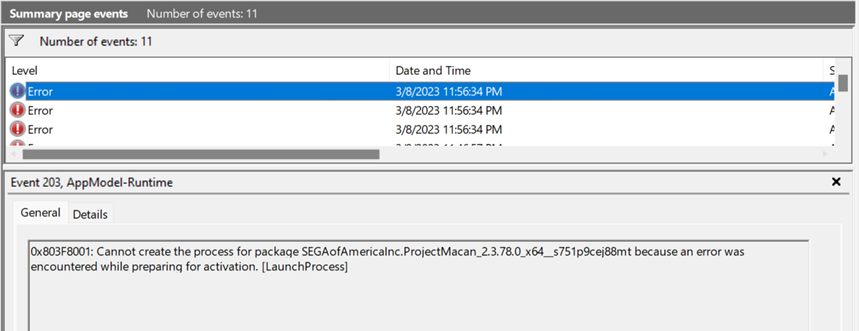


    I tried repairing the application packages, and resetting them (clearing local data), to no avail. I thought that perhaps there was something in the application packages themselves which was keyed similarly to Windows activation, so I deleted them and redownloaded them, but still had no luck running them – they failed in the same way. Then, finally, I noticed out of the corner of my eye that the system clock setting was incorrect – it was 2 hours ahead of Pacific time, almost certainly due to the time zone difference from the fulfillment center from which the replacement system was shipped. I know that DRM systems rely on clock times, so a problem with the clock could definitely cause problems with the DRM checks when starting up a game (which could be locked until its release date, and which relies on a timestamped, periodically-refreshed ticket to allow a user to run the application package) And sure enough, once I resynced the system clock to a public timeserver, everything worked without a hitch.

    The most frustrating part of this was the lack of a user-facing error dialog on application startup, and the lack of a diagnostic error indicating that the clock might be the issue. I couldn’t find any other messages in the Event Viewer that would have suggested a clock issue. And when I did happen to notice that the system clock was in the future, I had to correlate that issue with the silent DRM failure myself, and I just so happened to have the right information to make it all make sense. I’m sure that many other people in this circumstance wouldn’t figure out what was going on.

    Conclusion

    After fixing the above issues, I was able to successfully use my old machine’s drives in its replacement, saving me a bunch of time and effort to reinstall things on the new machine. Hopefully my description of this experience is helpful, if you’re trying to do the same thing and running into problems!

  • Upgrading the Wireless Adapter of a Dell XPS 8900

    Because it was kind of difficult to find information about this, I figured I would post some details about a tiny little upgrade that I did to a Dell XPS 8900. It originally came with a Dell DW-1801 wireless adapter, which only supports 802.11 b/g/n, and not ac. Also, it doesn’t support the 5 GHz frequency, which is really unfortunate.

    All of this means that wireless performance is kind of shaky upstairs in our house. I had started researching Wi-Fi extenders, and then went to check to see exactly what 802.11 ac profiles our router and wireless adapters supported, and was shocked when I realized what the problem was. I remembered that our XPS 8900s came with integrated wireless, and I seemed to remember that it was an M.2 device, so I looked to see if I could just swap out the wireless card with something better.

    Amazingly, in spite of all of the exhaustive specification information you can find on the Internet, it was actually pretty hard to figure out what M.2 physical connector the existing DW-1801 card used. I tried looking through my system and service manuals, and wasn’t able to find that information anywhere. This thread on Dell’s support forums was the best source of information I found, and indicated that it is size 2230 with key A E.

    I looked around to find a replacement adapter, and ultimately opted for this Intel 8260 NGWMG that I found on Newegg. Before installing, I went ahead and downloaded and installed the drivers from Intel. The physical installation was pretty straightforward, once I found the correct screwdriver to take off the old adapter and antenna wires. On bootup in Windows 10, the adapter was recognized and it started working perfectly once I rejoined the network.

    So, yeah, for curious people on the Internet – you can, in fact, upgrade the wireless adapter in a Dell XPS 8900 with a third party M.2 card.

  • Compacting a VHD

    I was looking to back up some VHD containers that I use to store files in Windows, and needed to trim one of them down before it would fit under the OneDrive 10 GB upload limit. Since it was a dynamically expanding VHD, just removing files from the container wasn’t sufficient to reduce the actual size of the VHD file. Once I was done, I needed to unmount the drive, and then compact it using the diskpart utility. Here are the steps I followed:

    1. Run the diskpart command from a command prompt.
    2. Enter select vdisk file="path to VHD file".
    3. Enter attach vdisk readonly.
    4. Enter compact vdisk. This will compact the VHD file, and might take a little while.
    5. Finally, enter detach vdisk and then exit. This will detach the VHD file and exit diskpart.

    Once this is done, your VHD size should be reduced to the minimum necessary to store the files within!

  • Tinfoil hat time

    I just thought I would share an amusing anecdote from my time at Netflix, related to wi-fi networking in our office. Because many devices that support Netflix have built-in wi-fi, we would test streaming with wi-fi connections to ensure that the experience was still satisfactory. Pretty standard stuff.

    At one point, though, we ran into a mysterious problem with wi-fi networking on one of our supported device types. Thinking that perhaps there was an issue with the wi-fi adapter on the device, or the signal from the router, someone did a WLAN survey to see how many wi-fi networks were visible from our corner of the office.

    It turns out that there were no fewer than 150 access points visible from there. Yes, 150 access points. That’s what happens when you have a huge number of people, working on a huge array of different devices, with different network configurations, and in different working environments.

    Of course, this discovery led to more than a few jokes about sterilization, CIA mind control, and space madness.

    (It turns out that the root cause of the problem didn’t have anything to do with wi-fi interference — it was actually a firmware bug on the device, which was triggered by a separate firmware update to the wireless access points in our building. Pretty crazy!)

  • DIY PC Troubles: The Darndest Things

    A few months ago I decided to update my desktop PC to Windows 8. I am somewhat ambivalent about the new Metro/Modern UI, but I figured that I would update anyway just to be on the latest and greatest.

    Unfortunately, after I updated, I started experiencing a lot of bizarre blue-screen crashes. At the same time, sometimes my machine would refuse to get through the BIOS startup at all, which would seem to indicate an issue with hardware rather than with the OS. I suspected perhaps that it was an issue with the SSD I had installed a while back (a Crucial M4), because the BIOS startup code would hang on drive detection. I tried updating the firmware for it, but that didn’t seem to do anything. Finally, after a more serious bout of being unable to boot for an extended period of time, I got frustrated and started trying to isolate things further.

    I turned off my external Blu-ray writer (an ASUS BW-12D1S-U), and then all of a sudden I was able to boot consistently. I thought that was very strange, and then got to thinking that maybe it was because I had plugged it into one of the front USB 2.0 ports on my case, and maybe that was drawing too much power. The reason I had plugged it in there was that a different USB 3.0 hub that I had bought (a SIIG JU-H60012-S1) had always been kind of flaky, and didn’t seem to work well with Windows 8 — I checked the Device Manager, and it was listed as “Superspeed USB Hub (Non Functional)”, which was kind of off-putting.

    It turns out that there is a firmware update for that USB hub that gets it to work correctly with Windows 8 (I’m guessing that may be more of a “gets it to work correctly at all” update). Applying that update allowed the hub to work in Windows 8, and, in turn, allowed me to plug my Blu-ray writer into it (a separately-powered hub) rather than directly to my computer. And (crossing my fingers) that seems to have solved my stability problems so far.

    My layman’s guesses as to why the problems initially seemed to be related to Windows 8:

    • There might be power-management changes in the USB drivers for Windows 8, that might be changing behavior slightly and triggering problems with my particular setup.
    • I might have switched where I plugged the drive in after I upgraded, not realizing that was what was causing the problem to begin with.
    • I didn’t use the hub that often before I updated to Windows 8, and didn’t realize that the hub itself could potentially be screwing with the rest of my system.

    I’m just glad that everything seems to be working now, and I can soldier on a bit further with my system (which is almost 3 years old now!)…

  • Windows Phone 8

    I recently picked up a Nokia Lumia 920, which I like quite a bit. I just figured I should try out the WordPress app for Windows Phone 8 — I might post more often if I can punch in a quick post or two on my phone!

  • Quick guide for installing SpamAssassin as a service

    I was having some issues with spam on my mail server (hMailServer), so I decided to set up SpamAssassin to filter things before they hit my inbox. While hMailServer has some native support for SpamAssassin, I figured I would write up the steps I used to get things running smoothly as a Windows service.

    Note that this is on a Windows Server 2003 box – steps may vary for other versions.

    • Download and install the Win32 binaries for SpamAssassin from JAM Software. This includes the spamd daemon, but this normally runs as a command-line application. It is better to run it as a Windows service, so it can be launched automatically when the machine reboots, without having to log in and run it manually.
    • Install the Windows Server 2003 Resource Kit Tools, if you haven’t done so already. This contains the srvany tool, which can be used to run an application as a service.
    • Open a command prompt for the Resource Kit Tools. There’s a shortcut installed with the tools.
    • Run instsrv SpamAssassin <path to Resource Kit Tools>\srvany.exe. This will install a new “SpamAssassin” service, linked to the srvany tool.
    • Now, open up the registry editor (regedit). Create a new key under HKEY_LOCAL_MACHINE\SYSTEM\CurrentControlSet\Services\SpamAssassin, called Parameters.
    • Under the Parameters key, create a string value called Application. Set the value of this to <SpamAssassin path>\spamd.exe.
    • Under the Parameters key, create another string value called AppDirectory. Set the value of this to <SpamAssassin path>.
    • Go to the Services administrator tool, and start the new SpamAssassin service you created.
    • Now, open up the hMailServer administrator tool, and go to Settings\Anti-spam. Click on the SpamAssassin tab, and check the Use SpamAssassin checkbox. Fill in the appropriate hostname (localhost should be fine, although you can use 127.0.0.1 if that doesn’t work), and check the Use score from SpamAssassin box. Finally, click on the Test… button to test your configuration. If a dialog box shows up with a response from the SpamAssassin service, you’re good to go.
    • If not, check to make sure that the service is running, and that the port used (783, by default) is not blocked. Check to see if the port is being used, by running netstat –an and checking to see that something (the spamd daemon) is using TCP port 783. You can also try enabling logging with spamd by creating an AppParameters string value under the registry key mentioned above, and setting it to –s file. This should result in a spamd.log file being created in the same directory as spamd.exe, and the information within might help you debug the issue.
  • The U-Verse Gateway…To Hell

    I just spent the last couple of hours discovering that my U-Verse gateway’s DNS server (serving the internal network) decided, for fun, to persist old IP addresses for some of my computers. The end result of this was that, while their external/NATted access was fine, local network services that were reliant on DNS would fail (since those machines had been allocated new IP addresses). So, for example, Windows file sharing would still work, but pinging or trying to use P4 would fail.

    I did find the awesomely named post, “The ATT U-verse 2Wire 3800 HGV-B. I am not a fan…” detailing other problems with it. Needless to say, I am not a fan of it either. I got this resolved (by simply locking those machines to the “incorrect” IP reported by DNS — my will to live was figuratively destroyed by this point), but the next time I run into a problem with it, I’m just going to shove another TomatoUSB-powered router behind it (to replace it as a wireless access point, basically), stick it in DMZPlus mode (more info here), and be done with it.

  • My Reflections on Apple

    I’m pretty sure this will be one of a million “stories about Apple” that will be going up tonight, prompted by the death today of one of its founders, Steve Jobs. Like many of my peers, the Apple IIe was one of the first computers I ever used, and one that I spent a huge amount of time with in my childhood — mostly playing games, of course, but also some programming and doing other practical things. The Macintosh that my dad later bought, in turn, also saw a lot of usage by me, although curiously my use of it was tilted more towards the practical and less games and programming. (Games because they simply didn’t exist, for the most part, on the Mac. And programming environments were pretty rudimentary for awhile — the development situation on the Mac at the time was definitely not friendly towards, or accessible by, 9-year-old kids.)

    Of those two platforms, I would say that their influences were quite different on me. The incredible breadth and depth of games available on the Apple II platform really fanned the flames of my interest in gaming, which I would later go into as a professional career. The Mac, apart from the obvious innovations in user interfaces, introduced me to concepts like hard drives, laser printing (via PostScript), local area networking, WYSIWYG, and desktop publishing (an innovation that has become so ubiquitous that the term isn’t even used any more).

    As a game developer, and someone who did some development on pre-OS X Macs, I wound up bearing a bit of a grudge against Apple. Their development environment, lacking protected memory, was incredibly unforgiving in many ways, and killed productivity. And Apple’s haphazard, ramshackle attempts at courting game developers were for the most part insulting, incomplete, and lacked support. I generally stayed away from purchasing Apple products and MacOS for a long time, ending only recently in the iPhone (which is a pretty decent phone).

    So, in total, Apple is a company whose products have been incredibly influential not only in the world at large, but to me personally. And when one of its founders kicks the can, I feel obligated to eulogize just a little bit. In parting, I’ll relate an Apple II gaming anecdote that I haven’t written about before:

    When we were kids, my brother and I used to love playing a game called Micro League Baseball, on our Apple IIe. It was a baseball simulation game, with somewhat rudimentary graphics, but a wide roster of teams, and the ability to play head-to-head. The multi-player mode was hot-seat — for each pitch, the player whose team was batting would select an option, and then the player whose team was in the field would select an option. Since the options could include baseball trickery like stealing a base, or pitching out, the person who was not entering their option would look away from the screen and keyboard and cover their eyes. This was to prevent the gaming equivalent of stealing signs.

    Our rivalry was quite intense, and it was quite a big deal to us to triumph in these games. (We didn’t really consider the relative strengths of teams we were using, apart from the ’27 Yankees being mega-powerful.) So I wound up doing something that was both smart and dumb. The smart part: I realized that the hollow case and keyboard design of the Apple IIe was such that key presses had distinct timbres to them — ones that could be distinguished quite easily, with a little practice. I quickly learned that I could steal signs and know exactly what my brother was doing, even though my hands were covering my eyes in adherence to the “rules.” If he pressed ‘3’ to steal a base, or ‘4’ to hit-and-run, I would know about it in advance. The key noises were so distinct that there was basically zero chance of making a mistake.

    The dumb part: I took too frequent advantage of this, and he got suspicious after about the sixth time that I called for a pitchout and happened to catch him stealing bases. I had to ‘fess up to my little trick.

    I can’t remember if covering our ears, too, became part of playing the game, or if the other person had to leave the room, to ensure fairness and a level playing field.

  • Home Wireless Networking…

    Our new apartment has a nice layout, but with regards to home wi-fi, there are a few key differences from our old place:

    • There are many more neighbors here who are also using wireless networks. They’re also closer to us than in our old place.
    • The construction of the building itself may be contributing to the reception problem.
    • The signal from our main access point is passing through a few walls. In our old place, it just had to go through a ceiling to get to our PCs.

    The end result of all of this is that, in our home office, the wi-fi reception has been a bit dicey ever since we moved in. It would work, but the signal would occasionally drop out, or the response time would not be as good as I would like. With Battlefield 3‘s beta starting soon, I didn’t want to take any chances with a problematic network connection. I finally had a chance to do some tinkering and try and find a good solution to this problem, using components and parts that I already had laying around.

    The first thing I tried was to set up a WDS (Wireless Distribution System), with a wireless router (my old Buffalo WBR2-G54) connecting wirelessly to my Asus RT-N16, which was situated in a hallway. The RT-N16 had better, unobstructed line of sight to the computers in the home office. The WBR2-G54 was running Tomato, and the RT-N16 was running Tomato USB. The conventional wisdom is basically that for WDS to work reliably/at all, the same hardware (or same wireless chipsets) must be used on all nodes. I can now report that the conventional wisdom seems to be true — I was able to connect using WDS, but not reliably. One minute, the network would be working very well, with strong reception between my office PC and the access point in the hallway, and good transfer rates. The next, it would be completely kaput, with a reboot of the router seemingly necessary to get it to respond at all.

    The next thing I tried was to flash both of my routers with DD-WRT, and then try out its repeater bridge mode. This would purportedly allow me to have two separate access points, with the one in the hallway set to use the other one as its gateway, and with all machines on both sides of the network on the same subnet. This sounds nice in theory — however, I wasn’t able to get it to work, and the tools and documentation available for troubleshooting in DD-WRT are somewhat minimal. I double-checked all of the setup instructions on the DD-WRT Wiki, but didn’t have much success — I could connect to each access point separately, but the bridging didn’t seem like it was working reliably.

    At this point, I was seriously considering just running some cable from the main access point in the living room to the hallway, and hooking the RT-N16 up there. It might be a bit ugly, but it would definitely work, and the interference problems would go away since the line of sight from PC to the access point would be much more direct and unobstructed. Some new Cat-6 and some cable covers, and everything would be golden…

    Finally, I decided to try the basic repeater mode in DD-WRT. I also shelved the idea of using both the Buffalo and Asus wireless routers in this — I just set up the RT-N16 to repeat the signal of the main access point in my place. I also moved the Asus from the hallway to inside the office, in a place that may have clearer line of sight and less interference to the main access point in the living room. (The Asus is sitting near a window, which is across from a single exterior wall, behind which lies the main access point.) Once I straightened out all the little differences in setup (ensuring that the Asus was set to mixed B/G mode instead of B/G/N, due to the limitations of the main access point, ensuring that the wireless security settings matched, etc.), it all just started working. Devices in my living room can talk with those in my office, and the connection seems reliable and steady.

    I could probably go back to using Tomato USB instead of DD-WRT, but at this point, now that it’s working well enough, I don’t want to mess with it for awhile. Maybe later down the line I will add another wireless-N router near my main (802.11g) access point, and see if repeating that signal will improve performance, but for right now I’m just happy to have nice reliable wireless networking going for my main PCs once again.